How to Edit Instagram Reels: Simple Steps That Work
 Aiden Parker··11 min read
Simple steps for editing instagram reels start with a clear idea, a short script, and clean cuts. Record or import your clips, trim each one, place the strongest moment first, add readable text and captions, check the music level, then watch the full Reel before posting.
The result changes with your clip length, phone storage, app version, and whether you edit inside Instagram or another app. Your goal also matters: a talking Reel needs clear speech, while a product Reel needs tight timing and visible details.
Who should edit Instagram Reels
A new creator may have phone clips but no editing plan. This reader needs a simple order for trimming, text, captions, music, and posting without learning advanced software.
A small business owner may already know the message and brand style. This reader needs faster cuts, consistent text, and a repeatable process for several Reels.
An experienced editor may want Instagram’s built-in tools for a quick post.
This page serves you best if you’re editing short vertical videos on a phone and want to publish from Instagram. It assumes you’ve got the Instagram app installed, your clips are saved on your device, and you’re using the current Reels editor. If your account shows different buttons, follow the labels in your version.
What changes the final Reel
Your opening clip matters most. Start with the action, result, question, or visual detail that earns attention. If the first clip needs a long explanation, move the useful moment earlier and check the preview before adding effects.
Clip length controls the pace. A talking clip needs enough time to finish a thought. A product or travel clip can often be shorter. Read each clip’s duration in the timeline, then remove pauses rather than cutting words in the middle.
Speech and music need different treatment. If people must understand the speaker, keep the voice clear and lower the music. If the Reel is mainly visual, music can carry more of the rhythm. Use the audio controls to compare both choices with headphones.
Text must stay visible long enough to read. Put one short idea on screen at a time. Preview the Reel without stopping it; if you can’t read the text before it disappears, extend its duration or shorten the wording.
The format affects what viewers see. Instagram’s Reels editor is designed for vertical video. Keep faces, products, and important words away from the top, bottom, and side areas covered by interface buttons or captions. The layout can change with the app version.
The detail people get wrong most often is the order. They add music, stickers, and text before deciding which clips belong in the Reel. Cut the story first, then decorate it.
How to edit a Reel step by step
Use Instagram’s mobile app for this workflow. Button names can move after an update, but the actions stay similar.
-
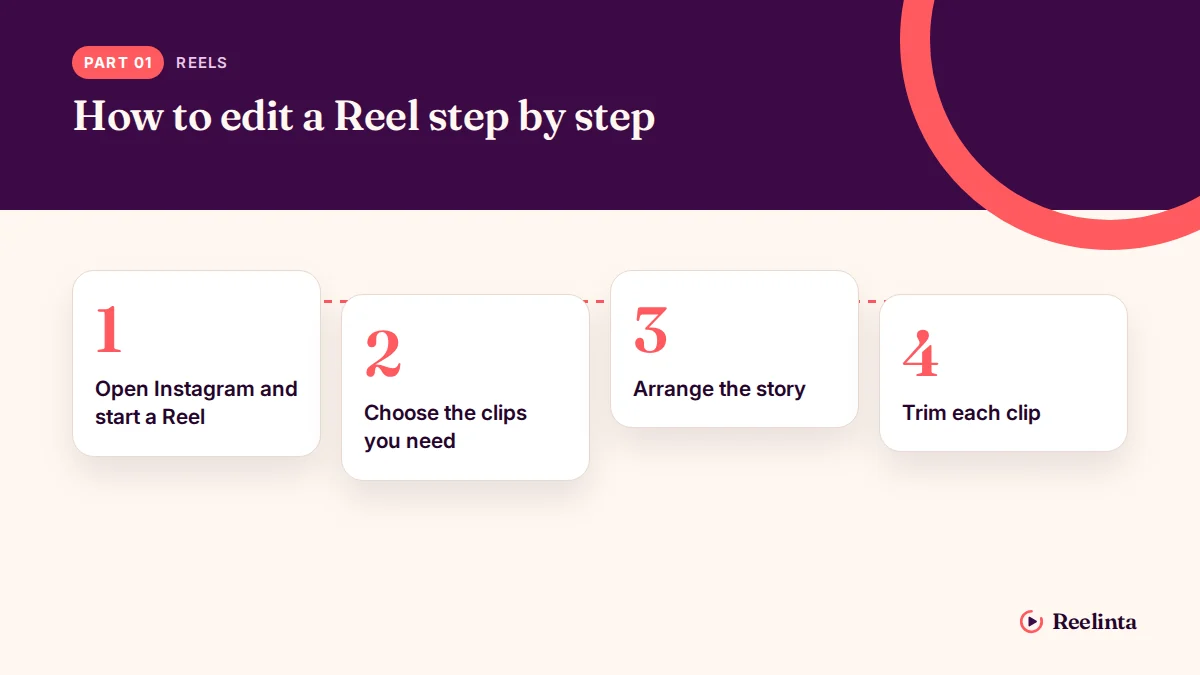
Open Instagram and start a Reel. Tap the create button, choose Reel, and select the camera or gallery option. You’ll know it worked when the Reel editor opens.
-
Choose the clips you need. Select only the video files that support one idea. Check the preview after importing; remove any clip that’s sideways, blurry, duplicated, or unrelated.
-
Arrange the story. Put the clearest result or strongest visual first. Drag clips into order, then play the sequence once without editing. Move on when the story makes sense with the sound off.
-
Trim each clip. Open the clip controls and drag the start and end handles. Remove empty starts, long pauses, and accidental camera movement. The clip should begin on the action and end after the useful moment.
-
Split only where the story changes. Use the split tool when one clip contains separate moments. After splitting, play the join. The cut works when it doesn’t remove a word, hand movement, or product detail.
-
Add text with exact wording. Tap the text tool and write one short message per text layer. Place it away from the screen edges, then set its timing on the timeline. Continue when you can read it during normal playback.
-
Add captions when speech carries the message. Use Instagram’s caption option if it appears in your editor, then correct names, numbers, and unusual words. Watch the full Reel with captions on before continuing.
-
Set the audio balance. Open the audio controls and compare the voice with the music. Lower the music until every spoken word is clear. If there’s no speech, check that the music starts at the intended moment.
-
Review effects and cover choices. Add only effects that support the message. Choose a cover frame where the subject is easy to recognize, and check that any cover text isn’t cut off.
-
Watch the complete draft. Preview it from beginning to end without pausing. Check the first second, every cut, text timing, audio, spelling, and final frame. Save or share only after those checks pass.
The key judgment is whether every edit earns its place. If a sticker, transition, or text layer doesn’t clarify the message, remove it. If the editor shows a warning you don’t understand, stop and check Instagram’s current help guidance instead of guessing.
Reel editing choices at a glance
Choose the simplest option that matches the footage and the message.
| Situation | What to do in it | What it takes | What to watch for |
|---|---|---|---|
| One clear talking clip | Trim pauses and add captions | Low editing effort | Misspelled names |
| Several short clips | Arrange them by story | Moderate timeline work | Abrupt visual changes |
| Product demonstration | Show result before process | Careful clip selection | Hidden product details |
| Voice-over Reel | Match visuals to speech | Extra timing checks | Audio drift |
| Trend-based Reel | Follow the chosen audio | Fast, precise cuts | Music overpowering speech |
| Tutorial Reel | Use numbered text cues | More review time | Text moving too quickly |
| Reused old footage | Crop and check quality | Extra format checking | Blurry vertical crop |
Simple Editing Details That Improve Instagram Reels
Prepare the footage first
Rename or group the clips before importing them if your phone has many files. Keep the clips for one Reel together, and remove duplicates before you open Instagram. This reduces timeline clutter and makes the final order easier to judge.
Record with the phone held vertically when the Reel is meant for a full-screen vertical view. Leave a little space around faces and products, because Instagram’s interface can cover edge areas. If an important detail sits at the edge, crop or reposition it before publishing.
Check the edit while it plays
Play the Reel at normal speed, not only while dragging the timeline. Watch for a mouth that keeps moving after the audio ends, text that appears after the speaker has finished, and a cut that repeats the same movement.
Leave transitions, filters, and animated stickers alone until the basic edit works. These tools can hide a weak cut, but they won’t fix unclear speech, poor lighting, or a clip that starts too late. The trade-off is simple: a plain Reel takes less time to polish, while a decorated Reel needs more checks.
Instagram Reel problems and fixes
Use the visible problem as your starting point. Don’t keep adding effects when the basic clip or audio is the real issue.
| What you notice | What it usually means | What to do first | How to stop it happening again |
|---|---|---|---|
| Video looks sideways | Footage was recorded rotated | Reopen the original clip | Record vertically |
| Voice sounds too quiet | Music level is too high | Lower the music track | Check audio before text |
| Text disappears quickly | Text timing is too short | Extend its timeline | Preview at normal speed |
| Cuts feel slow | Pauses remain in clips | Trim silent sections | Start recording on action |
| Captions contain errors | Speech wasn’t checked | Edit captions manually | Review names and numbers |
| Important detail is hidden | Subject sits near edges | Reposition the clip | Leave screen margins |
| Export or post fails | App or storage problem | Save draft and restart | Free storage and update |
A common costly mistake is editing the whole Reel before watching it once. You may spend time styling a clip that has unusable sound or a missing ending. Watch the rough sequence first; if the message doesn’t work in plain form, decoration won’t rescue it.
Rules for music and other people’s work
You can use Instagram’s available audio only within the permissions and limits attached to your account and region. Music access can differ between personal, business, and creator accounts, so check the audio label shown in your app.
Copyright still matters when you upload your own video. The U.S. Copyright Office explains that copyright owners control uses such as reproduction and public performance; its copyright basics guide is the place to check the general U.S. rule.
Don’t assume that credit makes a copied song, video, photo, or logo safe to use. If the Reel promotes a business, check the account’s available music options and use content you created, licensed, or have clear permission to use.
Rules can differ outside the United States. For a local question, check your country’s copyright office and Instagram’s current account guidance. If a post could create a legal dispute, stop and speak with a qualified copyright professional rather than trying to edit around the problem.
The real cost of editing Reels
The main cost is attention. A short Reel may take little time to assemble, but reviewing captions, cuts, audio, and the cover adds work when accuracy matters.
Editing inside Instagram costs less setup because the tools and posting screen are together. A separate editor can offer finer control over layers, sound, and saved templates, but it adds another export, another file to manage, and possible quality changes.
Your phone’s storage also affects the job. Original video files take more space than a posted preview, so check available storage before importing a large batch. If the app freezes, save a draft, close other apps, and remove only files you’ve backed up.
The cost rises when you need brand consistency across many posts. In that case, compare the time spent rebuilding fonts, colors, captions, and covers with the time saved by a template in a dedicated editor.
Keep the finished Reel usable
Save the original clips until the Reel has posted correctly and you’ve checked the published version. A draft or export can fail, and deleting the source clips makes a correction harder.
Keep a simple note with the Reel’s caption, audio choice, cover wording, and any required disclosure. This helps when you need to make a correction or create a follow-up without rebuilding the idea from memory.
Check the published Reel for the signs that matter: the opening plays correctly, the audio is audible, captions match the speech, and the cover shows the subject. If one part is wrong, fix that part and review the complete post again.
App buttons and editing tools change. When a control is missing, read the current help text in Instagram rather than following an old screen recording.
When Instagram editing isn’t enough
Instagram’s editor isn’t the best choice for long interviews, complex voice-over timing, or projects with many layers. Use a dedicated mobile or desktop editor when you need precise audio cuts, reusable templates, or detailed color work.
Don’t use this workflow for footage that needs recovery from serious technical problems, such as corrupted files or missing audio. Restore a backup or use a qualified video technician; repeated editing attempts can overwrite the only copy.
This approach also isn’t for paid work with strict delivery rules unless you can check the final file against the client’s required size, format, captions, and licensing terms. If those requirements are unclear, ask the client before publishing.
Frequently asked questions
Can I edit a Reel after posting it?
You can edit some post details, but not every video edit. Instagram may let you change items such as a caption or location, while replacing the underlying video usually means creating a new Reel. Check the options menu on the published post before deleting anything.
Why does my Instagram Reel look blurry?
The source clip, crop, export, or upload can reduce visible quality. Check the original video first, then avoid sending it through several apps before posting. A blurry original can’t become sharp through Instagram’s editing tools.
How long should it take to edit a Reel?
A simple one-clip Reel can take about 10–20 minutes when the footage is ready. Several clips, corrected captions, and careful audio checks can take longer. The number of clips and amount of text decide the time more than the Reel’s final length.
Is it safe to use trending audio in a Reel?
It’s safer when the audio is offered for your account and use case inside Instagram. Access can differ by country and account type. For business or paid promotion, check the permission shown in your account instead of assuming a trend is cleared for every use.
What happens if I delete the original clips?
You may lose the easiest way to correct the Reel. Keep the source files until the post is live and checked. If you need a new cut, new captions, or a different cover, the originals let you start again without downloading a lower-quality copy.
Does caption timing matter on Instagram Reels?
Yes, it matters whenever captions carry spoken information. Captions that appear late or vanish early can change the meaning and make the Reel hard to follow. Play the Reel normally and check that each line matches the words being spoken.
Can I edit a Reel without posting it?
Yes, you can save a Reel as a draft in Instagram. Draft availability and behavior can change after app updates, so don’t treat a draft as your only backup. Keep the original clips and your caption text separately.
How to start editing Instagram Reels
Start by selecting only the clips that support one clear idea, then arrange and trim them before adding text or music. You should see a smooth story, readable words, and clear audio. Stop and get help if a file is corrupted, a permission is unclear, or the app risks losing your only copy.
Aiden Parker writes about Instagram strategy, features, and growth, covering everything from captions and hashtags to algorithms, analytics, and audience engagement. His content explores Reels, Stories, Highlights, profile optimization, and Instagram for Business, offering practical insights to help creators and businesses improve their content, reach the right audience, and build a stronger presence on the platform.