Instagram Reels Size (Quick Reference)
 Aiden Parker··11 min read
For instagram reels size (quick reference), use a vertical 9:16 video at 1080 × 1920 pixels. Keep important text and faces away from the top, bottom, and right-side controls. Instagram can accept other shapes, but they may show empty space or crop in the Reels feed. This guide covers file settings, safe areas, export steps, common problems, and cases where a different format works better.
The right Instagram Reels size
Instagram Reels are short vertical videos made for full-screen phone viewing. The clearest working canvas is 1080 × 1920 pixels, with a 9:16 aspect ratio. This size gives you enough detail without creating an unnecessarily large working file.
You can upload a Reel in other shapes, but the display may not fill the screen. A wide video can show empty space, while a square or landscape clip may be enlarged and cropped. The result depends on how Instagram processes the upload and how the viewer’s device displays it.
The size is used for organic Reels, boosted Reels, and many vertical video ads. However, paid ads can have extra rules for file type, duration, text, and placement. Check Meta’s current ad specifications before spending money on a campaign.
The main misconception is that a larger video is always better. A 4K file may contain more detail, but Instagram still processes the upload. A properly framed 1080 × 1920 export is usually easier to upload, edit, and review.
The 9:16 ratio means the frame is nine units wide and sixteen units tall. It’s a shape, not a file size. A video can have the correct ratio but still look soft if the source clip is low quality.
How to size a Reel
Use these steps when you’re creating a new video or resizing an existing clip:
-
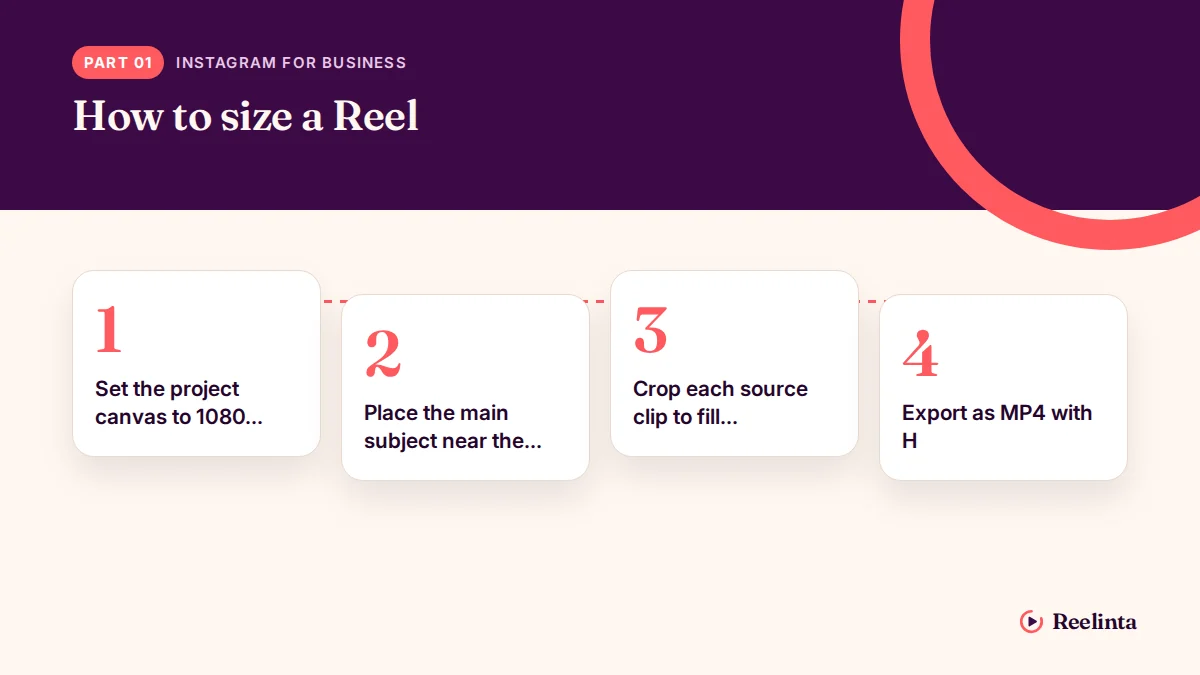
Set the project canvas to 1080 × 1920 pixels. Choose a vertical 9:16 project in your editor before adding clips. If the editor asks for orientation, choose portrait rather than landscape.
-
Place the main subject near the center. Leave clear space around the outer edges. Instagram’s profile name, caption, audio label, and action buttons can cover parts of the frame.
-
Crop each source clip to fill the canvas. A vertical clip can fill the frame with little work. For a horizontal clip, choose between cropping the sides or keeping the full image with a background; don’t stretch it, because stretching changes faces and objects.
-
Export as MP4 with H.264 video. Use AAC audio when your editor offers audio choices. Keep the frame rate the same as the original footage, such as 30 frames per second for a clip recorded at 30 fps, rather than forcing a higher rate.
-
Review the exported file at full-screen size. Check small text, faces, subtitles, and logos on a phone before uploading. If text touches the top or bottom edge, move it inward and export again.
-
Upload the finished file through Instagram. Select the Reel, choose the cover frame, add your caption, and check the preview before sharing. Don’t judge the final crop only from the editing timeline.
-
Keep a clean master copy. Save the 1080 × 1920 export without Instagram’s watermark or interface graphics. You’ll need a clean file if you later use the video on another platform.
The key judgment is framing, not just resolution. If the original footage is vertical and sharp, keep it full-screen; if it’s wide, crop only when the subject still fits comfortably. Editing software, paid ad tools, or business accounts may show different controls, so check Meta’s current instructions before changing advanced settings.
Reel size settings at a glance
These settings cover the main situations you’ll meet when preparing a Reel. The times below aren’t upload limits; they’re practical checks for editing and export.
| Situation | What to use | How long | What to watch for |
|---|---|---|---|
| New full-screen Reel | 1080 × 1920 px, 9:16 | Any length allowed by your current account and app | Keep text away from interface areas |
| Vertical phone footage | Keep the original 9:16 frame | Original clip length | Don’t crop the subject by enlarging it |
| Horizontal video | Crop to 1080 × 1920 or use a background | Original clip length | Cropping can remove people or product details |
| Square video | Place inside a 9:16 canvas | Original clip length | Empty space may reduce visual impact |
| Text-heavy tutorial | 1080 × 1920 px, large high-contrast text | Match text timing to speech | Small text can be hard to read on phones |
| Reused video from another app | Clean 1080 × 1920 export | Original clip length | Watermarks may distract from the content |
| Paid or boosted Reel | 9:16 vertical master, then check ad placement | Follow the current ad setup | Ad rules can differ from organic Reels |
For the platform’s current technical requirements, use Meta’s Instagram video requirements. Requirements can change, so don’t rely on an old editing template if Instagram rejects a file.
Details that improve Reel quality
Good results start before export. Record with the phone held vertically when the video is meant for Reels. Clean the camera lens, lock focus when possible, and leave room above a speaker’s head so a later crop won’t cut them off.
Build the video in viewing order: show the main subject first, add supporting clips next, and place the call to action where it won’t compete with Instagram’s controls. Keep subtitles inside the central area rather than placing them along the bottom edge. Check the preview after adding the cover image, because the cover crop may differ from the full Reel.
At the midpoint, watch the export on a phone instead of only on a large computer screen. Look for blurry text, clipped hands, missing product edges, and audio that starts late. If the video looks soft before upload, exporting it again at a higher resolution won’t restore detail that wasn’t captured.
Leave the original frame rate alone unless you have a clear editing reason to change it. Converting 24 fps footage to 60 fps doesn’t create new camera detail, and it can make motion look unnatural. Also leave sharpening and heavy filters off when they create bright edges or blocky shadows.
A useful trade-off is simple: cropping a wide clip fills the screen but removes part of the scene, while adding a background preserves the whole scene but leaves less visual impact. If the subject is more important than the setting, crop; if the full setting carries the message, keep the whole frame.
Reel size problems and fixes
A wrong canvas, an aggressive crop, or an unsuitable export can change how a Reel looks after upload. Start with the visible problem rather than changing several settings at once.
| What you notice | What it usually means | What to do first |
|---|---|---|
| Black or blurred space around the video | The source doesn’t fill the 9:16 canvas | Reframe it on a 1080 × 1920 project |
| A person’s head is cut off | The clip was enlarged or cropped too tightly | Reduce the crop and reposition the subject |
| Text disappears near the bottom | Instagram controls cover that area | Move text toward the center and preview again |
| The video looks soft | The source was low-resolution or heavily compressed | Use the original camera file and export once |
| Upload fails or stalls | The file may use an unsupported setting or connection | Export a standard MP4 and retry on a stable connection |
| Audio is missing | The export has no usable audio track or the app muted it | Check the audio track before uploading |
Don’t keep exporting the same damaged file. A common costly mistake is resizing an already compressed download several times; each export can make text and fine details look worse. Go back to the original recording whenever you can.
Instagram’s current limits
Instagram’s technical requirements aren’t permanent. Meta can change supported file types, maximum dimensions, duration rules, and ad placement requirements without changing your editing software. Check the current Meta Help Center page when a file is rejected or when you’re preparing a paid campaign.
For everyday creation, 1080 × 1920 pixels and 9:16 are the dependable working settings. They match the full-screen vertical design without requiring you to create a very large master file. Don’t treat 1080 × 1920 as a guarantee that every upload will look identical, because Instagram may recompress video during processing.
Instagram may also apply separate rules to videos used in ads, branded content, or boosted posts. A file that works as an organic Reel may still need review in Ads Manager. If you’re spending money, confirm the placement and format in Meta Ads Manager before publishing.
You don’t need specialized equipment for ordinary Reels. If a project involves licensed music, paid advertising, or a brand’s legal approval, send it to the account owner, ad manager, or rights holder rather than guessing. The platform can change the result after upload, so always review the live preview.
Keep Reel files organized
Save the original camera files and the final 1080 × 1920 export in separate folders. Use a clear name such as product-demo-1080x1920-v1.mp4, so you’ll know which file has already been reviewed.
Keep a version without captions or platform graphics when possible. A clean master lets you create a new caption style, correct a spelling error, or adapt the video for another vertical platform without starting again.
Check the uploaded Reel when it’s live, not only in the editor. Look at the cover, subtitles, first frame, audio, and the lower part of the screen. If text is covered or the image is cropped badly, replace the upload with a corrected export rather than trying to explain the problem in the caption.
There’s no single reliable lifespan for a video file’s quality on Instagram. Compression, source footage, export settings, and the app version all affect the result. Your own value to read is the live Reel: if fine text is still clear on a phone and the subject isn’t covered, the file is holding up as intended.
When Reel sizing isn’t the best choice
A full-screen 9:16 Reel isn’t right for every source video. If the original is a wide interview, a landscape presentation, or a group scene where cropping removes people, use a wider format for the main post and make a separate vertical teaser.
If the video contains charts, spreadsheets, or long lines of text, forcing everything into a narrow frame can make it unreadable. Create a short vertical summary, then direct viewers to a format where the details have enough space.
This approach also isn’t for a video that must match an existing campaign template. If a client, broadcaster, or ad campaign gives you exact dimensions, follow that specification first. If the platform rejects the file, ask the campaign owner or Meta support to confirm the current requirement rather than changing the master at random.
Related guides
- How Long Should Instagram Reels Be? The Answer
- How to Make Instagram Reels: A Step-by-Step Guide
- How to Add Music to Instagram Reels: Complete Guide
Frequently asked questions
What is the best size for Instagram Reels?
1080 × 1920 pixels is the best general working size for a full-screen Reel, using a 9:16 ratio. It fits the vertical phone layout and gives text enough room for a clear export. Keep important details away from the edges, because Instagram’s interface can cover them during viewing.
Can Instagram Reels be square?
Yes, Instagram can accept a square video, but it won’t fill the full vertical screen in the same way as a 9:16 Reel. A square frame may leave extra space or appear smaller in the feed. Use square only when keeping the complete image matters more than full-screen impact.
Why does my Reel look blurry after uploading?
A blurry Reel usually comes from a low-resolution source, repeated compression, or an export that doesn’t preserve enough detail. Start with the original camera file, set the project to 1080 × 1920 pixels, and export once. Review the finished file on a phone before uploading it.
How long can an Instagram Reel be?
The maximum length can change with Instagram’s account and app rules. Meta has adjusted Reel duration over time, and some creation tools may show different limits. Check the duration shown in your current Instagram app before editing a long video, especially when the video is for a paid promotion.
Is it safe to put text at the bottom of a Reel?
No, not if the text carries essential information. The bottom area can sit behind captions, audio details, buttons, or other interface elements. Keep key words closer to the center and use the final Instagram preview to check that every line remains visible.
What happens if I upload a landscape video?
A landscape video may appear with empty space, or Instagram may enlarge and crop it to fit the vertical display. That can remove people, products, or text from the sides. Choose a crop only when the subject still fits; otherwise, place the full clip on a 9:16 canvas with a simple background.
Should I export Reels in 4K?
Not usually. A 1080 × 1920 export is enough for a standard full-screen Reel when the original footage is clear. A 4K master can be useful for archiving or later edits, but uploading a larger file doesn’t guarantee a sharper result after Instagram processes it.
Conclusion
Before your next post, create a simple reusable Reel template with space for captions, faces, and Instagram’s controls. Test it on a phone before publishing, then adjust anything that feels crowded or hard to read. A consistent setup will save time and help your videos look polished as your content grows.
Aiden Parker writes about Instagram strategy, features, and growth, covering everything from captions and hashtags to algorithms, analytics, and audience engagement. His content explores Reels, Stories, Highlights, profile optimization, and Instagram for Business, offering practical insights to help creators and businesses improve their content, reach the right audience, and build a stronger presence on the platform.